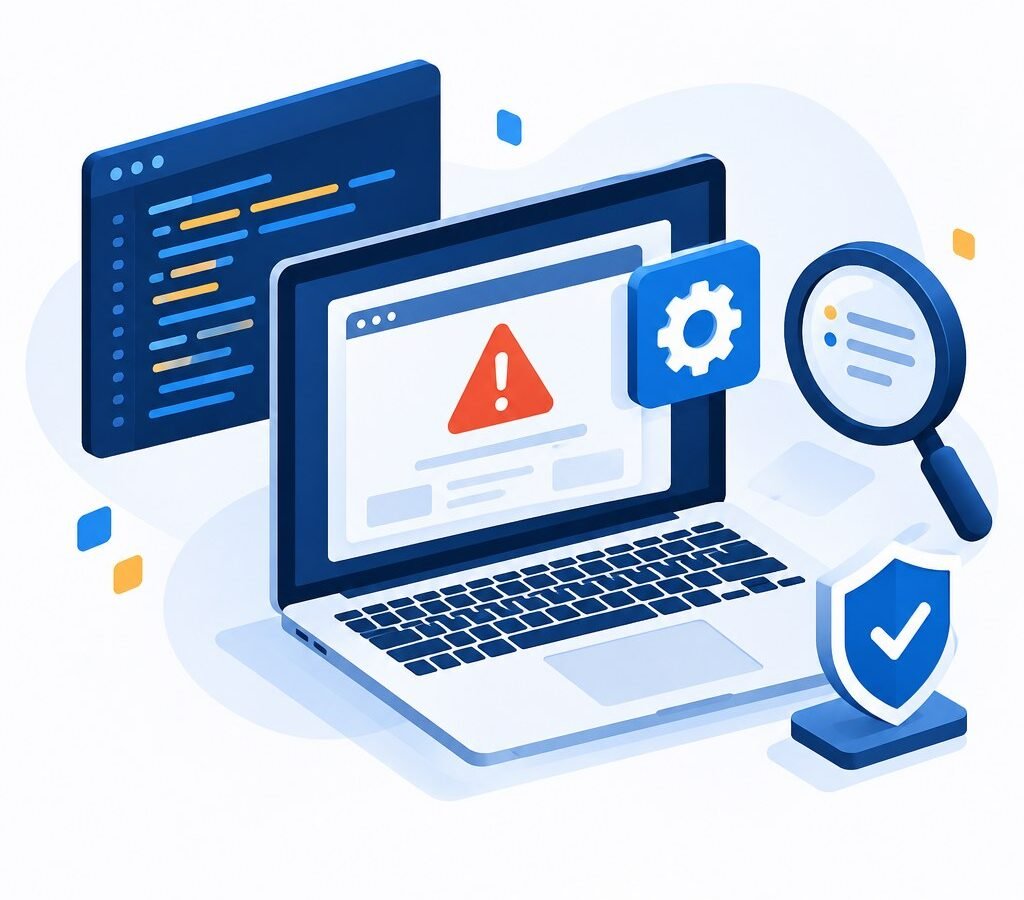
Quick answer: If WordPress reports “The site is experiencing technical difficulties” or “There has been a critical error on this website” immediately after a plugin update, check the administrator’s Recovery Mode email and the hosting PHP error log first. If you have identified the offending plugin and cannot access the dashboard, temporarily rename that plugin’s folder through hosting File Manager or SFTP. Do not delete every plugin or restore an old database before you know what failed.
These messages usually mean PHP stopped processing a WordPress request because of a fatal error. A plugin may be responsible, but theme code, missing dependencies, incompatible PHP versions or an incomplete deployment can produce the same symptom. The goal is to restore access while protecting orders, form submissions and other data created since the last backup.
This guide follows the current WordPress Recovery Mode and debugging documentation. It describes a controlled troubleshooting workflow, not a claim that one technique fixes every website.
What the WordPress technical-difficulties message actually means
Since WordPress 5.2, Recovery Mode can pause a faulty extension for an administrator’s recovery session after certain fatal errors during normal page loads. Visitors see a generic message instead of an internal stack trace. The wording has evolved, but both the “technical difficulties” and “critical error” versions indicate that the next useful step is inspecting the underlying failure, not guessing which plugin is broken.
| Symptom | First place to investigate | Why |
|---|---|---|
| Site failed directly after an identified plugin update | Recovery email, plugin changelog, PHP fatal trace | The update is a strong lead but not conclusive proof |
| Only one page or wp-admin screen fails | Page-specific template, shortcode or admin hook | Other requests may not load the faulty code path |
| Failure began after theme deployment | Theme PHP syntax, dependencies, deployment revision | A broken theme file can prevent WordPress from booting |
| HTTP 500 without a WordPress recovery notice | Host PHP/server log and WordPress bootstrap | The crash may occur outside the recovery handler |
Step 1: Save your evidence and backup before changing anything
Record the URL, exact time and timezone, whether /wp-admin/ works, the most recently updated plugin or theme, and the WordPress/PHP versions. If an error log is available, copy only the relevant timestamped entries and remove secrets and personal data before sharing them.
Check for a usable files-and-database backup from before the update. On a WooCommerce site, new orders, payment notifications and customer data may have arrived since that backup. Restoring an entire old database could overwrite them. A selective plugin or theme rollback is often more appropriate once the problem has been isolated.
Where possible, reproduce the failure on staging. My WordPress staging guide and backup planning checklist explain why a verified recovery path matters.
Step 2: Check WordPress Recovery Mode
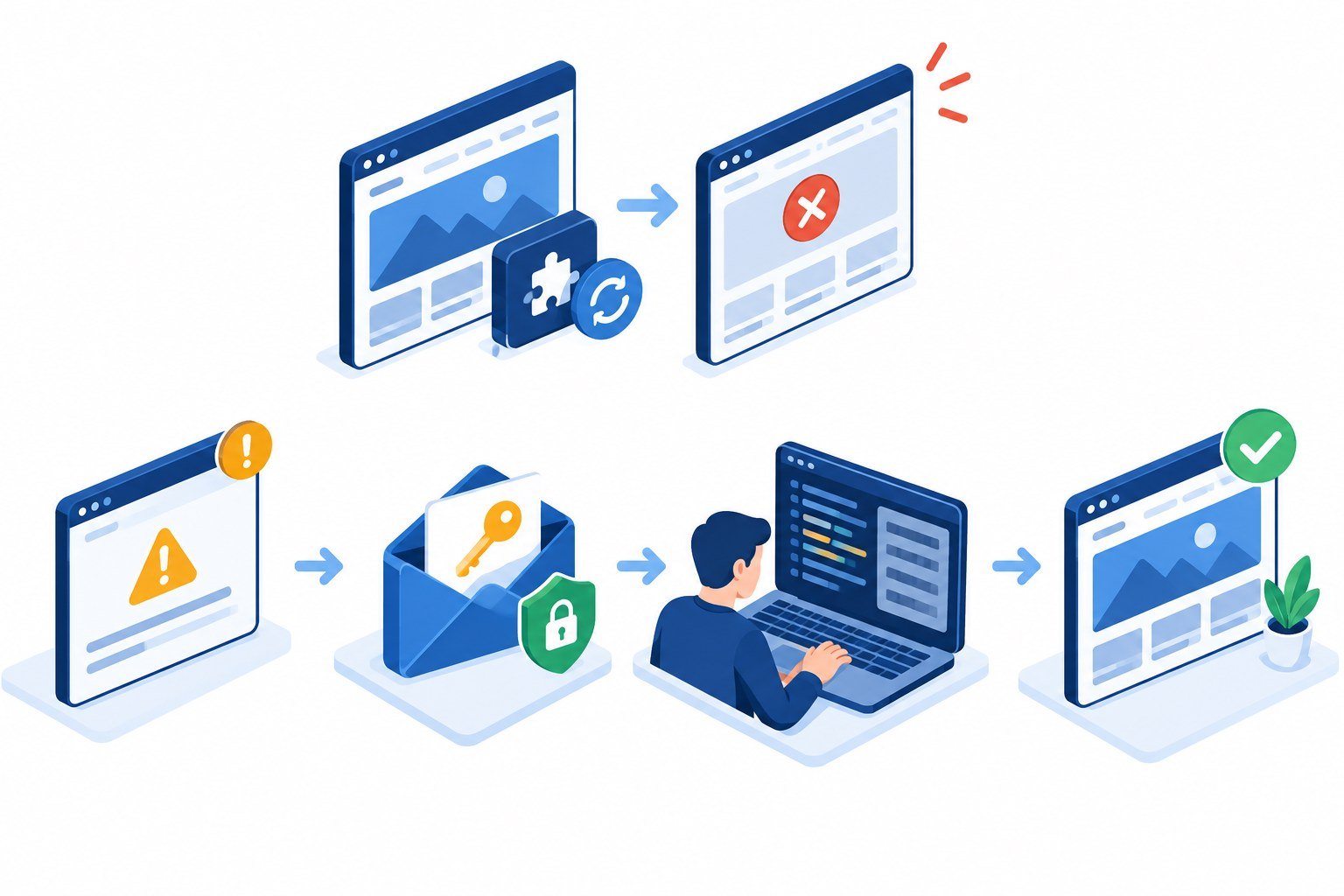
When WordPress can identify an eligible fatal plugin or theme error, it may send a Recovery Mode link to the site administrator’s email. Check that address and its spam folder. A missing message does not mean no fatal error occurred: mail delivery problems and failures in background tasks can prevent a useful notice.
- Open the legitimate Recovery Mode link for your own website and verify its domain before logging in.
- Read the dashboard notice naming a paused plugin or theme. That component is paused for your recovery session, not automatically repaired for every visitor.
- Deactivate or safely roll back the identified plugin, or restore a known-good version of the affected theme file.
- Exit Recovery Mode and verify the public website, administrator login and affected functionality outside the temporary session.
WordPress documents exactly how this works in Recovery Mode. Do not interpret a successful recovery-session login as proof that the public error is gone.
Step 3: If the dashboard is inaccessible, isolate the plugin by SFTP or File Manager
If the most recent update and PHP trace both implicate one plugin, a temporary directory rename can stop WordPress from loading it. Use a hosting control panel or an authorized SFTP client.
- Open
wp-content/plugins/and identify the exact plugin directory, for exampleexample-plugin. - Rename that directory temporarily to
example-plugin-disabled. Keep all files, and do not delete the folder. - Reload the affected URL and WordPress admin. If the fatal error disappears, you have isolated a likely trigger, not yet completed the repair.
- Compare the current version with the last known working version and check any dependent plugins. Repair or restore on staging before resuming normal operation.
Important: Disabling WooCommerce, a payment gateway, subscriptions or a membership plugin can stop customer transactions. Coordinate a maintenance window and choose a reversible action. On multisite or must-use-plugin installations, ordinary directory renaming may not cover every activated component.
For developers with working WP-CLI access, wp plugin deactivate example-plugin is an alternative to renaming a normal plugin directory. The installed plugin slug must match. See the official WP-CLI reference.
Step 4: Identify the fatal PHP error from the logs
The actual PHP trace is more useful than the generic browser message. Compare the timestamp to the update and look for the error type, file, line number and preceding call stack. Common messages include Parse error, Call to undefined function, Class not found, Uncaught Error and memory exhaustion.
On a staging or otherwise restricted debugging environment, WordPress documents the following temporary wp-config.php settings:
define( 'WP_DEBUG', true );
define( 'WP_DEBUG_LOG', true );
define( 'WP_DEBUG_DISPLAY', false );
@ini_set( 'display_errors', 0 );
Set these before the /* That's all, stop editing! */ portion of the configuration file, updating existing constants instead of defining duplicates. When WordPress has permission to write it, the log typically appears at wp-content/debug.log; your hosting account may also provide a different PHP error log.
Security: WordPress recommends debugging primarily on staging and development sites. Logs may contain private data, so do not expose error output publicly, keep logs protected and turn temporary debugging off once the incident is resolved. Consult the WordPress Debugging Handbook for the supported flags.
Step 5: Determine whether it is a version, dependency or code issue
- Plugin error: inspect the change log, declared minimum PHP and WordPress versions, and dependencies. Reproduce the relevant interaction on staging.
- Theme
functions.phpor template error: compare the latest deployment with the last working commit. A single PHP syntax error can bring down the entire site. - Missing class or function: check that the required plugin or file was actually installed and loaded. The failing line may be in a different component from the root cause.
- Resource exhaustion: examine memory usage or runaway jobs with your host. Simply increasing a limit does not identify the underlying process.
- PHP incompatibility: use the actual error and the extension’s version requirements rather than downgrading the server at random.
As of November 2026, WordPress recommends PHP 8.3 or newer. Its legacy minimum is not a good target for a fresh production deployment, and older PHP versions may no longer receive security updates. Test the supported version combination before switching a live site.
For a deeper process, see my WordPress plugin-conflict troubleshooting guide.
Step 6: Repair or roll back the smallest affected component
Prefer a specific, reversible correction: restore a known-good theme commit, replace a damaged plugin release with a verified compatible package, fix an incomplete upload, or update a missing dependency. Keep a record of the change and why it should solve the observed PHP error.
Do not blindly delete the plugin or download untrusted third-party copies. If a commercial extension is involved, use the vendor’s authorized download or an existing verified backup. A rollback should also account for database migrations: older plugin code may not be compatible with changes already applied to the database.
When restoring a hosting snapshot, verify exactly which files and database records it replaces. For a store that has accepted recent orders, careless rollback can lose business data even if it makes the homepage load again.
Step 7: Verify real business functions after the fix
The homepage loading is necessary but insufficient. Use a controlled verification checklist and review fresh PHP logs afterward.
| Part of the site | What to verify |
|---|---|
| WordPress | Homepage, affected route, wp-admin and no new fatal errors |
| Contact forms | Validation, successful delivery and correct recipient |
| WooCommerce | Cart, checkout, sandbox payment, order status and gateway notifications |
| Scheduled tasks | WP-Cron or Action Scheduler progress without blind replay of payment jobs |
| Site-specific content | Custom fields, languages, archive URLs, templates and permissions |
| Page caching | Visitors receive fresh HTML rather than a cached fatal-error page |
If payment or renewal processing was affected, check the provider’s transaction records before repeating any charge. My WooCommerce gateway troubleshooting article covers the payment handoff, while the Scheduled Actions guide covers background jobs.
FAQ: WordPress critical errors after updates
Is the technical-difficulties message always caused by a plugin?
No. Plugins are common causes, but theme edits, PHP errors, missing dependencies, or host-level failures can produce similar symptoms. Check the trace before deciding what to disable.
Why didn’t WordPress send a Recovery Mode email?
The administrator address may be wrong, messages may be filtered, email delivery may fail, or the error may occur outside a normal supported page load. Check host logs even if no email arrived.
Will renaming a plugin directory remove customer data?
The rename itself does not delete database records, but deactivating a critical plugin can affect the front end, orders, payments or access. Keep backups and follow a defined recovery procedure.
Should I leave WP_DEBUG enabled on the live website?
No. Use a staging environment or tightly controlled short-term debugging, hide errors from visitors, protect log files and disable the temporary settings afterward.
Will upgrading PHP fix the critical error?
Not automatically. Confirm that the theme and plugins support the target PHP version, examine the fatal trace and test the change on staging. WordPress currently recommends PHP 8.3 or newer.
What should I send a developer?
Send the affected URL, time of failure, recent update history, a redacted fatal-error trace, WordPress and PHP versions, and whether staging and a recent backup are available. Do not send passwords, gateway secrets or personal customer data in a public form.
Need help recovering a broken WordPress website?
I help investigate plugin conflicts, fatal PHP errors, theme deployment issues and WooCommerce-related failures using a controlled diagnosis and rollback workflow. Share the technical symptoms through my project enquiry page or review my WordPress development services.
References verified in November 2026: WordPress Recovery Mode, Debugging, Hosting requirements, and WP-CLI plugin deactivation.
Need implementation help?
Turn the technical fix into a reliable production solution.
If this article describes a problem you are dealing with, I can review the current setup, identify the right implementation path, and build or fix it without adding unnecessary complexity.